
If I’m trying to grow a site, I don’t want guesses. I want traffic data I can use right away. The good news is that WordPress makes this easier than most people think.
In this guide, I’ll show the easiest ways to check website traffic on WordPress and explain which option fits which kind of site. That matters because better traffic data helps me spot winning pages, catch traffic drops early, and find new growth chances before they slip by.
I can check WordPress traffic in three main ways: built-in stats, analytics plugins, or Google Analytics. Each path has a different level of depth, and picking the right one saves a lot of time.

Start with the fastest way to see traffic inside WordPress
When I want a quick answer, I start inside the dashboard. If my site runs on WordPress.com, or I use Jetpack on a self-hosted site, I can see basic traffic stats without much setup.
Use WordPress.com Stats or Jetpack for a quick traffic snapshot
In most cases, I open my dashboard and click Stats or Jetpack > Stats. Within seconds, I can see visits, views, top posts, referrers, and simple trend charts. That gives me a fast pulse check, which is perfect when I just want to know if traffic is up, flat, or slipping.
The official WordPress.com traffic guide shows the kind of dashboard reports I can expect. For a lot of bloggers and small business sites, that snapshot is enough to guide weekly content choices.
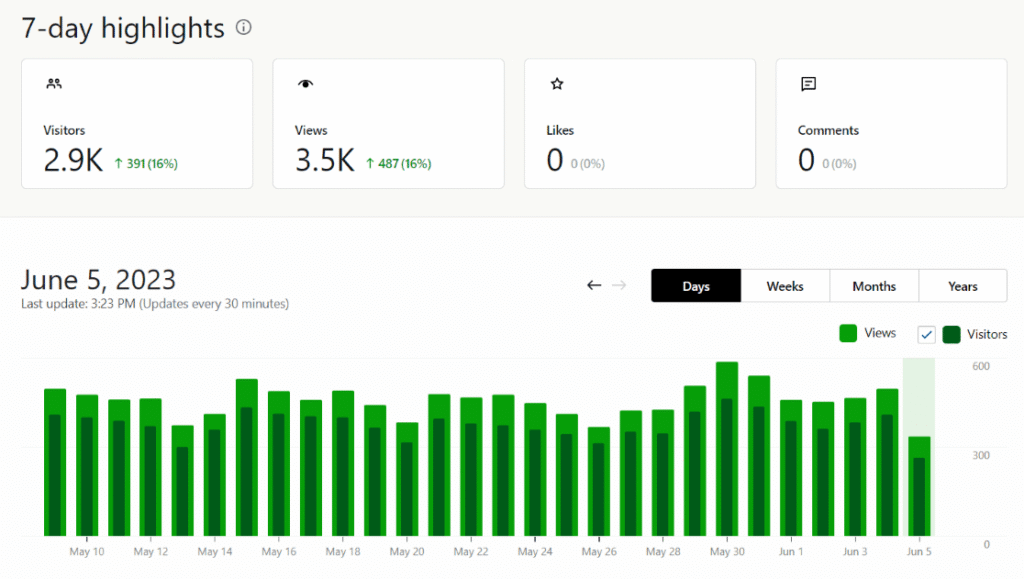
Jetpack works well when I don’t want to mess with tags, events, or outside dashboards. I can log in, glance at the numbers, and move on. For busy marketers, that ease matters a lot.
Know what these basic traffic numbers can and can’t tell me
Simple stats are useful, but they aren’t the whole story. They tell me what happened on the surface. They don’t always tell me why it happened.
For example, I can usually see which posts pulled the most views and which days got the most visits. Still, I may not get deep source tracking, detailed user paths, event tracking, or rich conversion reporting. That’s where Google Analytics, or a plugin that brings it into WordPress, starts to make more sense.
A quick dashboard view is great for speed, but not always great for diagnosis.
So if I only need a weekly traffic check, built-in stats are excellent. If I want to improve campaigns, landing pages, or lead generation, I need more detail.
Pick the right WordPress traffic plugin for the way I market my site
Once I outgrow the basics, a plugin becomes the bridge between raw data and smarter decisions. The best choice depends on how I like to work.
Here’s a quick side-by-side view:
| Plugin | Best for | What I get |
|---|---|---|
| Jetpack | Bloggers, small sites | Simple stats, top posts, trend lines |
| MonsterInsights | Marketers, stores, lead gen sites | GA4 reports in WordPress, traffic sources, devices, eCommerce data |
| WP Statistics | Privacy-focused owners | Self-hosted data, visitor info, traffic sources |
| ExactMetrics | Agencies and growth teams | GA-style dashboard reports, forms and campaign tracking |
The broad analytics plugin comparison from Jetpack is helpful if I want to compare a few tools before I install anything.
Choose Jetpack if I want simple reports with almost no learning curve
Jetpack is my pick when I want clean reports and very little setup stress. It puts traffic numbers inside WordPress, and the layout is easy to scan. I can spot top posts, check daily trends, and get a general feel for site activity fast.
That makes it a strong fit for personal blogs, niche sites, and content-first projects that don’t need deep campaign tracking.
Choose MonsterInsights if I want Google Analytics data in my dashboard
MonsterInsights fits better when I care about growth channels, lead generation, or sales. It pulls GA4 data into WordPress, so I don’t have to bounce between tabs all day. I can check users, sessions, real-time visitors, devices, and top pages from the admin area.
For internet marketers, that matters because it ties traffic to action. If I run forms, landing pages, or WooCommerce, I can get a better view of what brings visits and what helps those visits turn into revenue.
Choose WP Statistics if privacy and data control matter most to me
WP Statistics is the option I look at when privacy matters more than fancy integrations. It stores data on my own site, which gives me more control. Depending on how I set it up, it can also support a more privacy-friendly approach.
I still get useful reports, such as traffic sources, visitor locations, and UTM campaign data, but without sending everything through Google. In 2026, that matters more than ever because many site owners want stronger privacy settings, real-time views, and less outside data sharing.
If I want another broad comparison before deciding, this 2026 plugin roundup from IsItWP is a solid second opinion.
Connect Google Analytics to WordPress when I need deeper traffic insights
When I need more than a snapshot, I connect GA4. This is the part that sounds harder than it is. With the right plugin, setup is pretty manageable.
Set up GA4 and connect it to WordPress in a few simple steps
First, I create a Google Analytics account if I don’t already have one. Then I create a GA4 property for my site. Google gives me the property I need for tracking.
Next, in WordPress, I go to Plugins > Add New and install MonsterInsights. After I activate it, I open the Insights settings and connect my Google account. The setup wizard handles most of the heavy lifting.
If I want a visual guide, this GA4 setup tutorial walks through the same path in plain steps.
Once the connection is live, I wait for data to build. I won’t see a full picture in five minutes, but traffic reports usually start appearing after tracking begins.

The nice part is that I don’t need to add code by hand in most cases. That lowers the risk of setup mistakes, which is a huge relief.
Check the traffic reports that actually help me grow
Once data starts coming in, I focus on a few reports first. I check users and sessions to see whether traffic is growing. Then I review top landing pages to find the content that brings people in.
After that, I look at traffic sources. If search brings strong traffic, I know SEO content is working. If social sends visits but those pages don’t hold attention, I know I need better targeting or stronger page copy.
Device reports matter too. If most people visit on mobile, I pay close attention to page speed, layout, and form design. Real-time users are also handy when I publish a post, send an email, or launch an ad, because I can see activity right away.
For page-by-page checks, this post and page stats guide is useful when I want to see which pieces are pulling their weight.
Focus on the numbers that lead to more traffic, not just more charts
Analytics can get noisy fast. I try not to stare at every graph like it’s a treasure map. A few numbers usually tell me most of what I need to know.
Watch top pages, traffic sources, and trends before anything else
My first stop is always top pages. Those pages show me what topics people care about most. If one post keeps bringing visits, I can update it, link from it, or build related content around it.
Next, I check traffic sources. That tells me where I should spend time. If organic search wins, I double down on search-friendly content. If email sends the best visitors, I work on better campaigns there.
Then I watch trends over time. A drop isn’t always a crisis, but it is a signal. Maybe rankings slipped. Maybe a page got outdated. Maybe a campaign stopped. Catching the dip early gives me time to fix it.
Use newer analytics features without making reporting harder
In March 2026, the big trends are clear: privacy-first analytics, more real-time dashboards, and AI-assisted summaries. I like these features when they save time, not when they add clutter.
Real-time reporting helps me react faster. Privacy-first tools help me keep more control over data. AI summaries can point out traffic drops, rising pages, or channel changes without making me dig through ten reports.
Better reporting doesn’t mean more reports. It means faster insight and clearer action.
So I treat those newer features like extras. Helpful, yes. Required, no.
If I’m learning how to check website traffic on WordPress, the best setup is the one I’ll actually use every week. For quick checks, Jetpack or WordPress.com Stats does the job. For richer reporting inside the dashboard, MonsterInsights makes GA4 easier to read. If privacy and data control matter most, a tool like WP Statistics is a strong fit.
The smart move is simple: pick one setup, check traffic every week, and act on what the numbers show. Traffic data only matters when I use it to improve content, promotion, and pages that already have momentum.